
Pick a signature style
Browse signature designs and choose a look that suits you.
 AutoSign
A signature that feels like yours
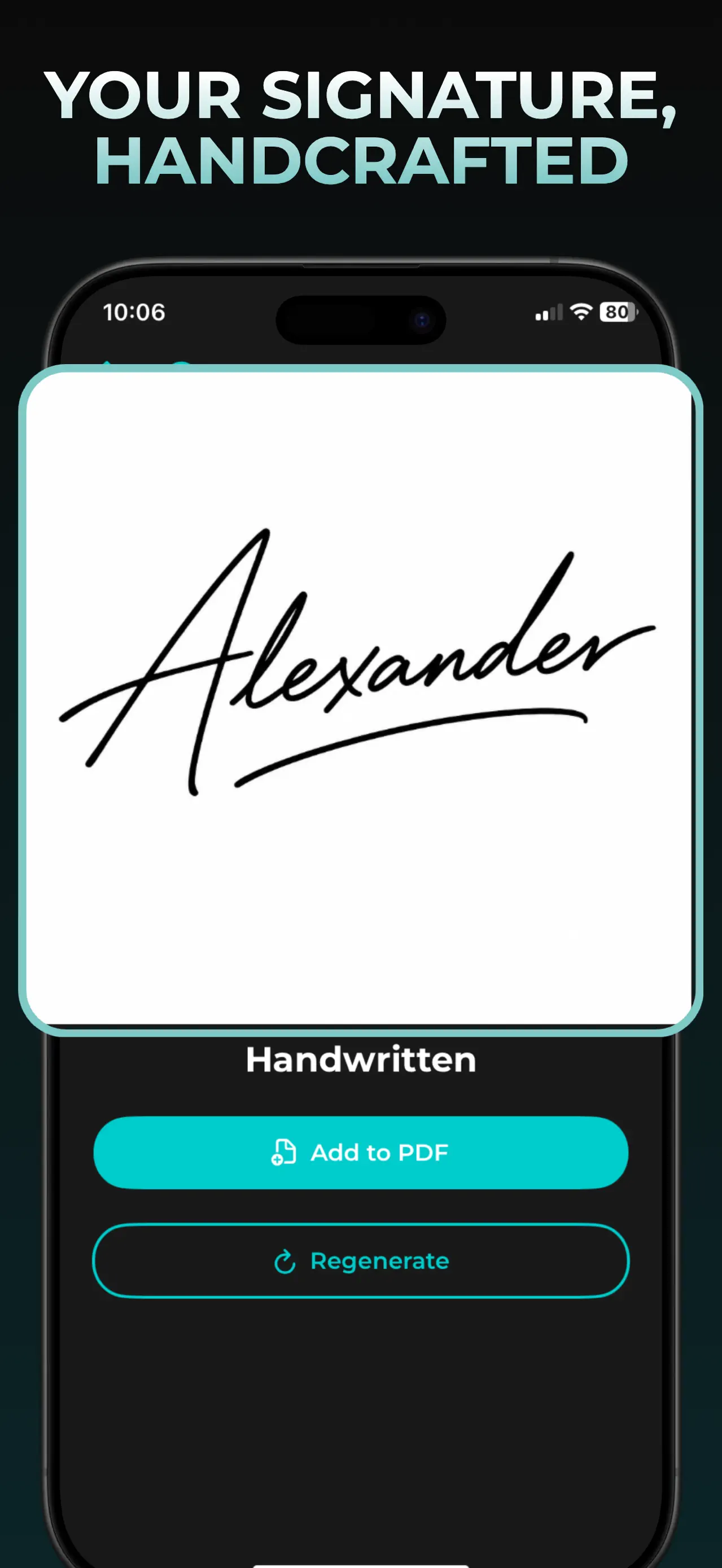
Make a signature from your name in a style you like, or draw it by hand. Save it for later and place it on a PDF when you need to sign.
Download AutoSignFor iPhone and iPad · PDF signing and image export require AutoSign Pro
Start with your name
Choose a look or draw
Use it on a PDF
Made for everyday documents
AutoSign helps you create a handwritten-looking signature and keep it ready on your device. Start with a name or draw your own, then choose from styles such as classic, modern, calligraphy, and more.
Browse signature designs and choose a look that suits you.
Generate a version from your name, or use the drawing canvas for your own handwriting.
Open a PDF in AutoSign, position your signature, and export the signed file.
AutoSign places a visual signature on a document. It does not verify identity or provide a certificate or audit trail. Check the requirements that apply to your document before using an image signature.
Step-by-step
Read our practical guide to choosing a PDF, placing your signature, and exporting the finished file.
Choose your design
Pick a style, check the lettering, and save a design you want to use.
A few useful details
Yes. Choose a style in AutoSign, enter your name, and generate a handwritten-looking design. Check each letter before you save it. You can also draw a signature yourself.
See the name-to-signature steps →PDF signing requires AutoSign Pro. Signature generation has limited free use. Check the in-app subscription screen for current plan details and pricing.
See how PDF signing works →No. AutoSign places a visual mark on the document. It does not verify the signer or create a certificate or audit trail. Follow the document recipient’s signing requirements.
Your signature, ready when you are