
AutoSign journal · iPhone
How to check a generated signature for spelling
Review names, initials, accents, and letter shapes before using a generated signature.
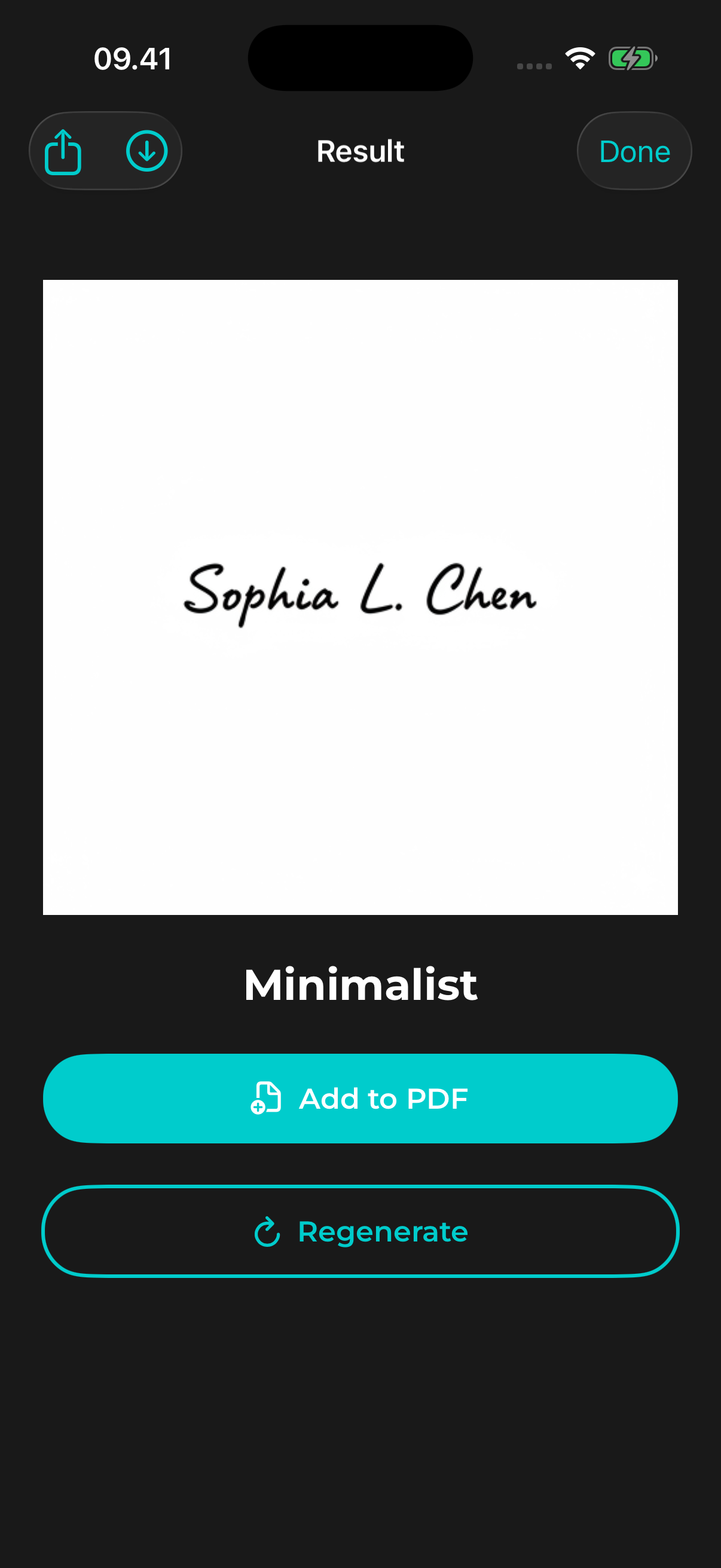
Practical example
For example, compare the result letter by letter with your entered name. Look closely at repeated letters and marks above or below letters, which can be easy to miss in a decorative style.
Compare the input and the result
Keep the name you entered in mind while examining the generated design. Start with the first and last letters, then look at each initial, space, and punctuation mark.
Pay attention to accents and similar letters
Decorative strokes can make neighboring letters look alike. Check accents and characters that matter to your name, and view the result at the size it will appear on a document.
Try a different result when needed
Signature generation can change strokes and letter shapes, whether the starting point is typed text or a hand drawing. If the intended name is not recognizable, try another style or result rather than relying on a design you cannot read.
Verify the final file
After saving an image or signing a PDF with AutoSign Pro, open the exported copy. Check that it contains the chosen design and appears correctly where it will be used.
Explore the name-to-signature guide, image export guide, or PDF signing guide for detailed steps.
View AutoSign on the App Store ↗