
AutoSign guide · iPhone and iPad
How to save a signature as an image on iPhone
Save a signature picture to Photos or share it from AutoSign. Learn which controls to use and how image export differs from saving a project or PDF.
How do I save a signature image on iPhone?
On AutoSign’s result screen, tap the down-arrow icon to save the signature to Photos or the share icon to send it to another app. Both actions require AutoSign Pro. Allow the requested Photos access when saving. Tapping Done saves a project inside AutoSign rather than exporting the image.
Image export requires AutoSign Pro
You can keep a generated design in My Projects, but saving it to Photos or sharing its image requires Pro. Review the in-app plan details before subscribing.
This guide covers signature images. Saving a signed PDF uses a separate workflow in the PDF signing guide.
Get AutoSign ↗1. Create and review a signature
Choose a style, then enter your name in Text mode or use Hand Drawing. Generate a result and check every letter before exporting.
Look at the initials, spaces and final letter of the surname. An image that looks attractive in a preview can still contain a spelling mistake. The typed-name guide explains the full creation process.
Step 2
Save the signature image to Photos
On the result screen, tap the down-arrow-in-a-circle icon at the top left. If a subscription screen appears, this action requires Pro.
Allow the Photos access requested by iOS. Wait for the save to complete; the download icon changes to a checkmark when the save succeeds. Open Photos and find the recently saved image before leaving the app.
Keeping a result with Done saves it as an AutoSign project. It does not perform this Photos export automatically.
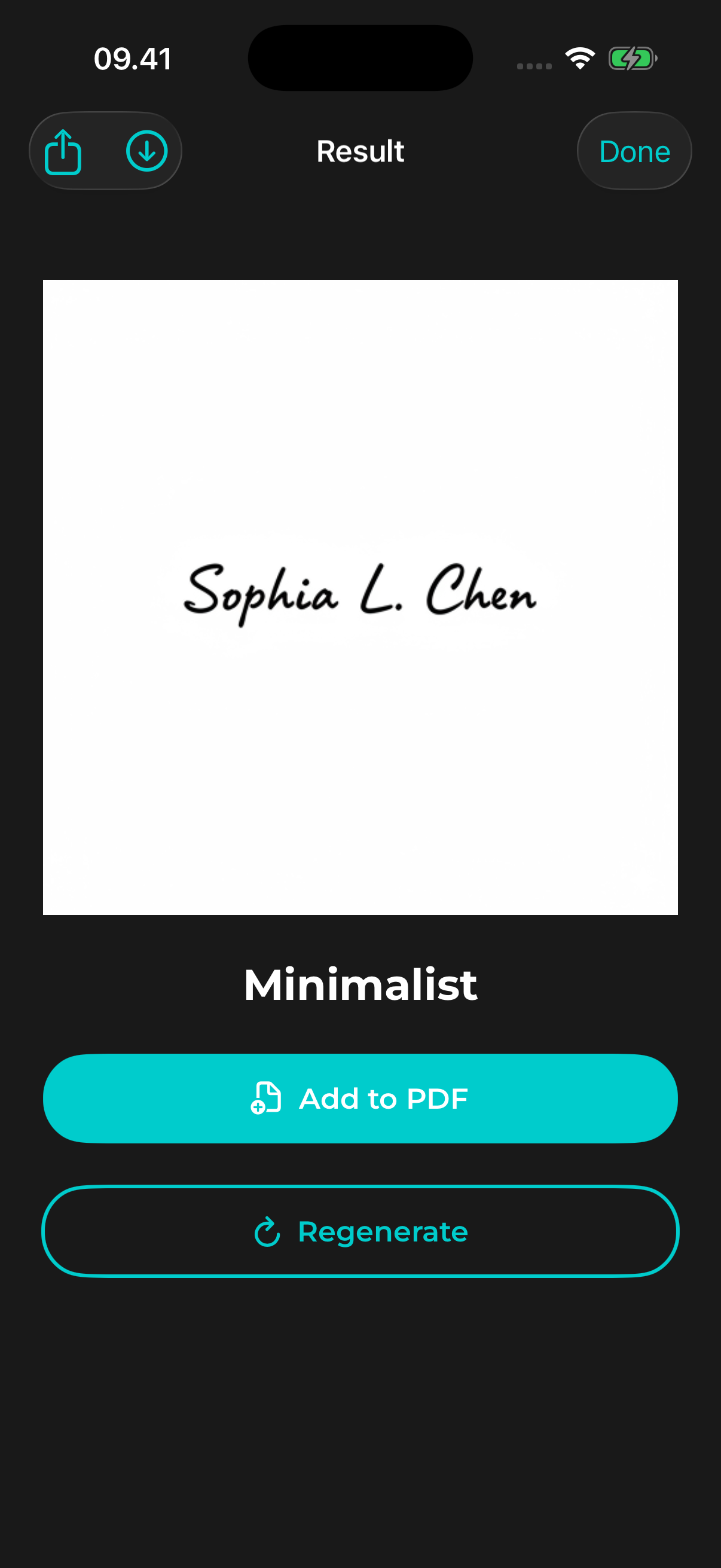
3. Share the signature image from the result screen
Tap the square-with-an-up-arrow icon at the top left to open the iOS share sheet. Choose the destination app or action you need. Sharing the signature image requires Pro.
Available actions depend on the apps installed on your device. If the destination is a PDF that you want to sign in AutoSign, use Add to PDF instead of sending the image to another app.
4. Check the copy you saved or sent
Open the saved image or check the destination app after sharing. Make sure it is the design you selected, and that the strokes remain readable at the size where you intend to use them.
An image file contains the visual signature. It does not include identity verification, a signing certificate or an audit trail. Follow the requirements of the document or service receiving it.
Save a project, a signature image, or a signed PDF?
| What you need | Action in AutoSign |
|---|---|
| Keep the design in the app | Tap Done to save it in My Projects. |
| A signature picture in Photos | Tap the download icon and allow Photos access. Pro required. |
| Send the signature image to another app | Tap the share icon. Pro required. |
| A document with a signature placed on it | Choose Add to PDF, position it, then export the PDF. Pro required. |
The signature image did not appear in Photos
Check the Photos permission for AutoSign in iPhone Settings, then return to the result screen and try the download action again. Wait for the success checkmark and look at the newest images in Photos.
Can I save a transparent PNG signature?
The app’s image export does not provide a dedicated transparency or file-format selector. Do not assume an exported image has a transparent background. Check the saved file and its appearance in the destination before using it.
Can I save a signature made from initials?
The export steps are the same for a full name or initials. Check the generated lettering before saving. If a form asks for a full name, follow that instruction.
View AutoSign on the App Store ↗These instructions cover AutoSign’s app controls. For app identity, access details and support, see AutoSign app facts. Current availability and plans are in the official App Store listing.