AutoSign journal · iPhone
How to explore cursive signature styles for your name
Compare cursive-style signatures and check the lettering before saving a design.
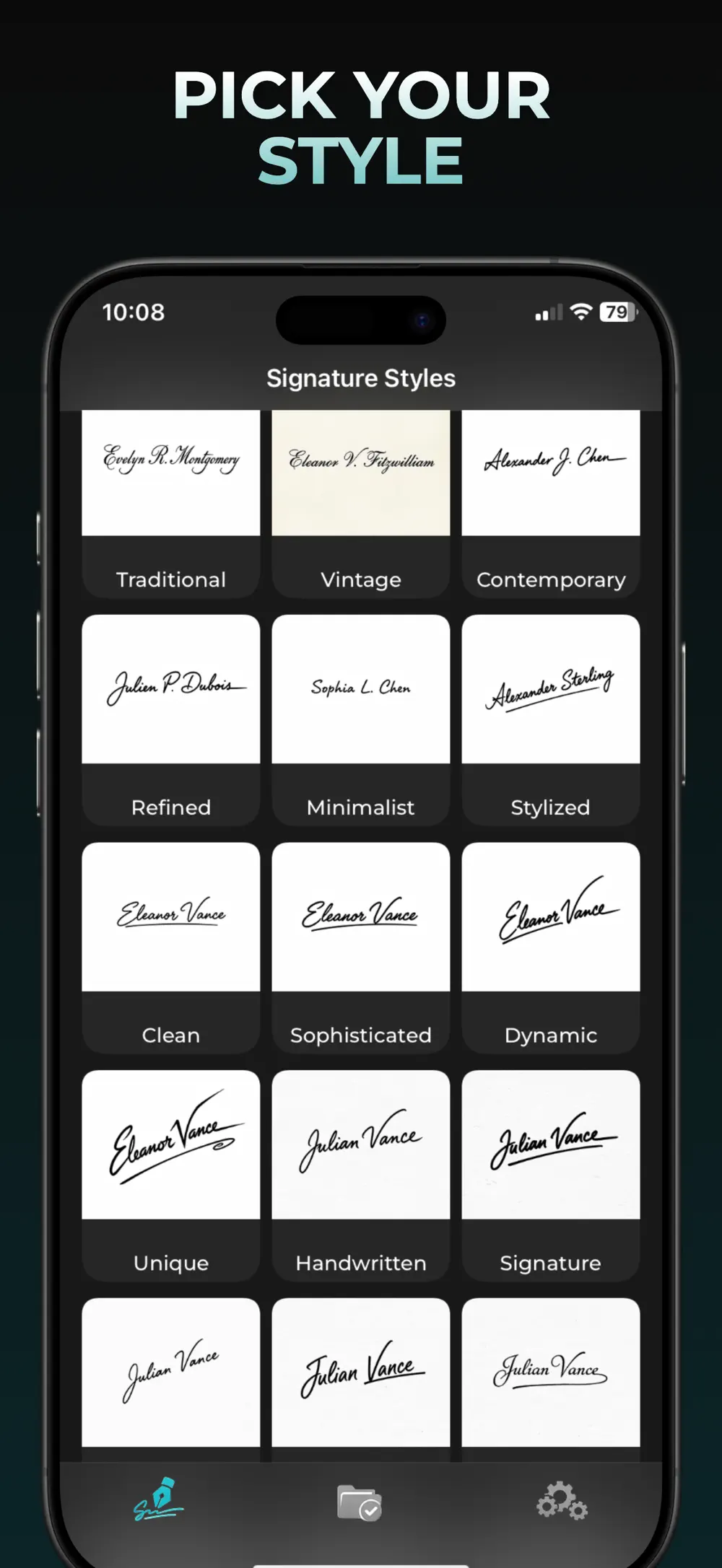
Practical example
For example, compare the same full name in two styles at the size it will appear on a form. Check that the first and last names remain distinguishable before choosing one.
Start with your name
Enter the name you intend to use, including spaces or initials. You can also begin with a drawing if you prefer using your own handwriting as the input.
Choose and compare a style
In AutoSign, browse the available signature styles and choose one with the flowing look you want. Compare a simple style with a more decorative one: a shorter flourish can leave more room for the letters.
Inspect the result
Check every letter, accent, initial, and space. Generated designs can change shapes and strokes, so a result that looks attractive may not spell your name clearly. Try another result or style if the lettering is hard to recognize.
Use a checked design
Keep a design in My Projects for later. Saving or sharing a signature image and placing it on a PDF require AutoSign Pro in the current released listing. Follow the document recipient’s requirements.
Explore the name-to-signature guide, image export guide, or PDF signing guide for detailed steps.
View AutoSign on the App Store ↗