
AutoSign journal · iPhone
How to sign a PDF attachment from email on iPhone
Save an emailed PDF, add a signature, and send a checked copy from your iPhone.
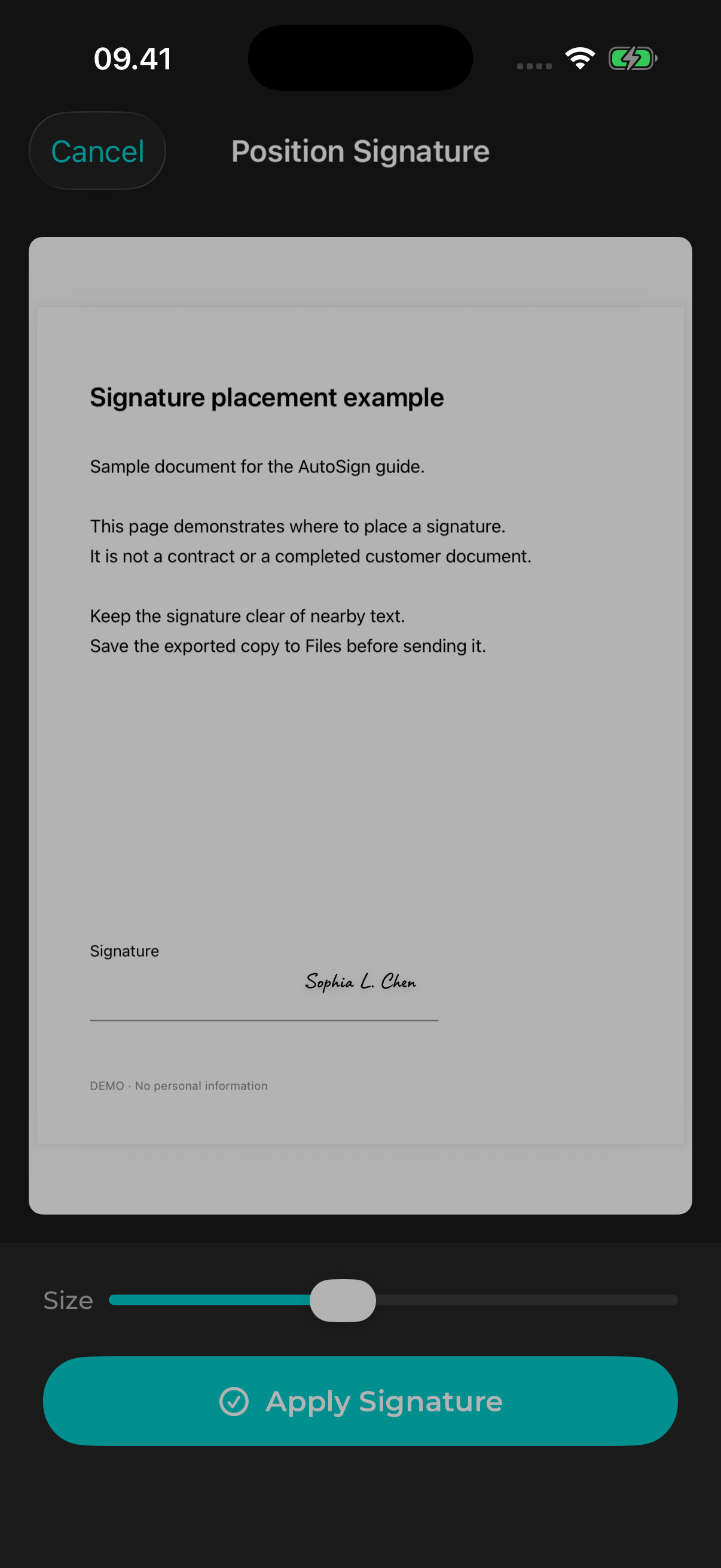
Practical example
For example, save an emailed form to Files first, then open the saved copy in your chosen PDF editor. Before replying, attach the exported copy and verify that it opens.
Save the attachment
Open the email and its PDF attachment. Use the iOS share menu to save the file to a folder in Files. Remember the folder so you can find the document again.
Choose a signing method
For a simple drawn mark, use Markup in a supported iPhone app. To use a signature design generated in AutoSign, create the design, check the lettering, and choose Add to PDF. PDF signing in AutoSign requires Pro.
Place and check the signature
Open the saved PDF, navigate to the correct page, then position and resize the signature. Check that it does not cover existing text, dates, or other fields.
Send the signed copy
Apply the signature and save or share the resulting PDF. Open the exported file to check the correct pages and signature before attaching it to a reply. Keep the original separately if you may need it again.
Explore the name-to-signature guide, image export guide, or PDF signing guide for detailed steps.
View AutoSign on the App Store ↗