
AutoSign journal · iPhone
How to reuse a saved signature on iPhone
Keep a signature design in AutoSign and find it again when you need to sign a document.
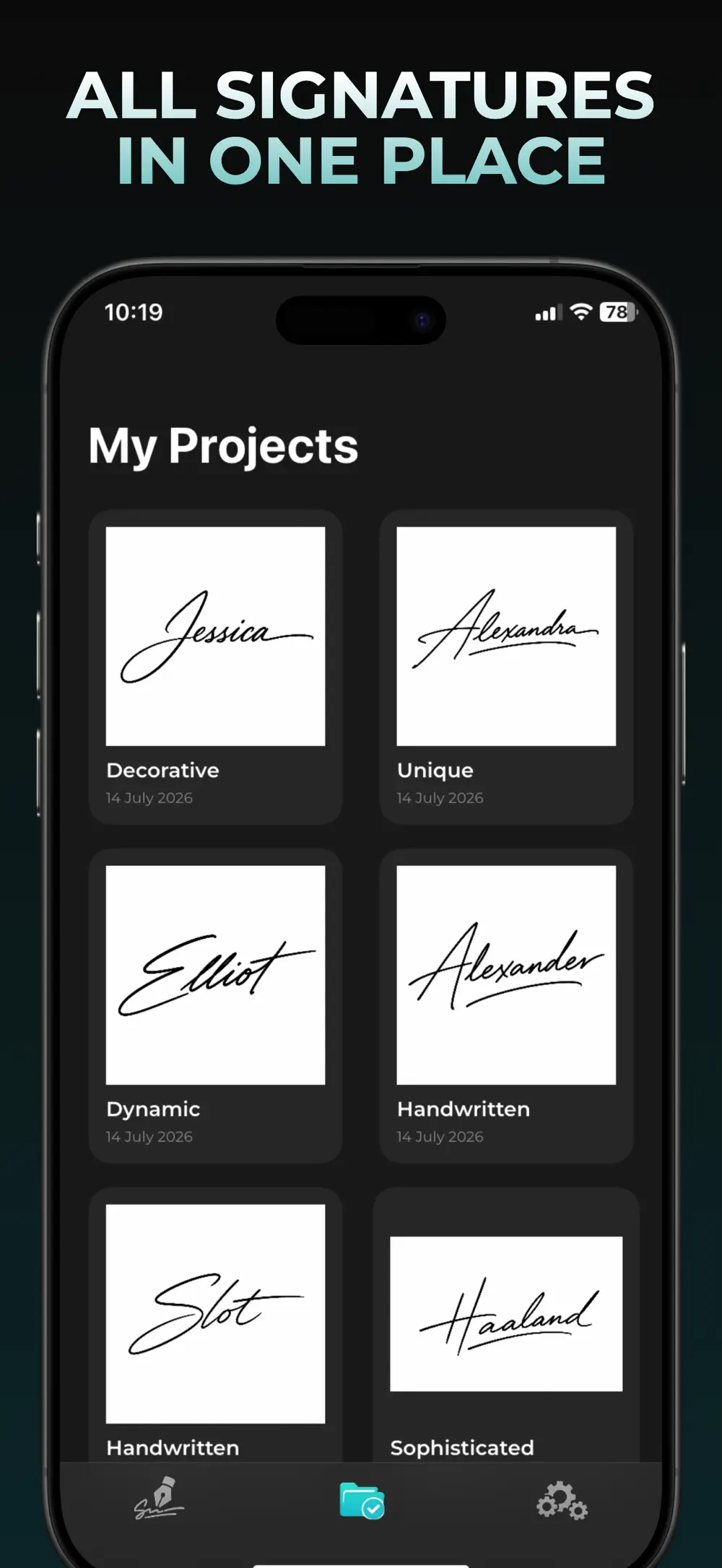
Practical example
For example, keep a full-name design and an initials design as separate projects. Open the relevant project and inspect the result again before exporting it for a new document.
Save the design in AutoSign
After generating a signature, check the spelling and shape of the letters. Use Done to keep the design in My Projects. Saving a project keeps the design in the app; it does not automatically export an image or signed PDF.
Find it in My Projects
Open My Projects and select the saved signature you want to use. Review the design again if you have several similar versions, especially when they use different initials or styles.
Choose how to use it
From the saved design, choose the available action to add it to a PDF, save an image to Photos, or share the image. PDF signing and image export require AutoSign Pro in the current released listing.
Check the exported copy
For a PDF, open the exported document and confirm the signature is on the intended page and does not cover other text. For an image, open the saved file or destination app to verify the design and background.
Explore the name-to-signature guide, image export guide, or PDF signing guide for detailed steps.
View AutoSign on the App Store ↗