
AutoSign journal · iPhone
How to place a signature on a multi-page PDF on iPhone
Find the correct page and check the exported copy when signing a multi-page PDF.
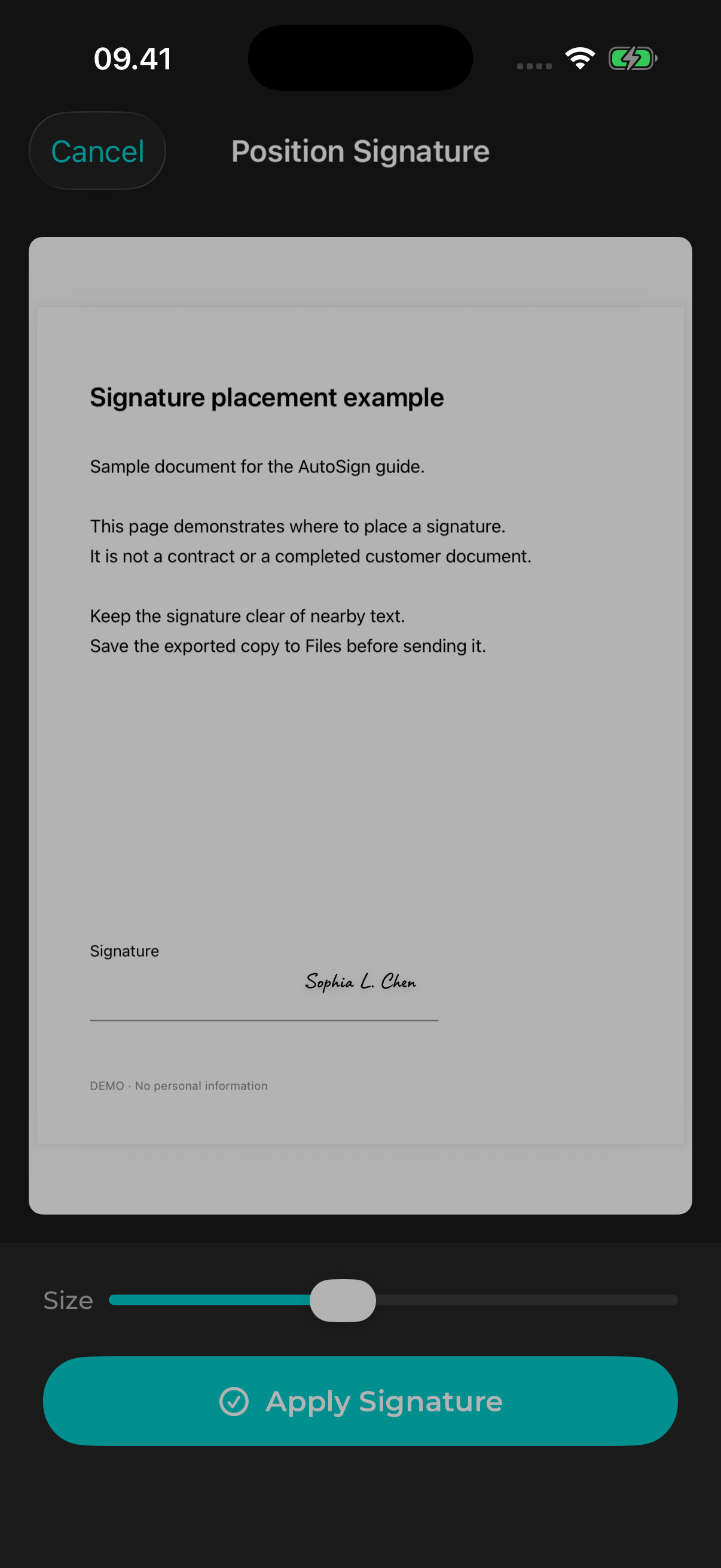
Practical example
For example, if a five-page form asks for a signature on page four, navigate to page four before placing it. Reopen the exported file and confirm that all five pages remain present.
Save and inspect the document
Save the PDF to Files and open it to confirm that all expected pages are present. Keep the original separately if you need an unchanged copy.
Open the PDF in AutoSign
Create or select a saved signature, check its lettering, and choose Add to PDF. Select the saved document. PDF signing requires AutoSign Pro in the current released listing.
Navigate to the signing page
Use the page controls in the PDF editor to reach the page that needs the signature. Drag the signature to the intended line and adjust its size. Check surrounding text and fields before applying it.
Export and review
Apply the signature and use the iOS share sheet to save or send a copy. Reopen that copy and check the page count, signature position, and readability. If other pages require signatures, follow the document’s instructions and check each required page.
Explore the name-to-signature guide, image export guide, or PDF signing guide for detailed steps.
View AutoSign on the App Store ↗