AutoSign journal · iPhone
How to make a handwritten signature easier to read
Compare signature styles and review lettering before using a signature on a document.
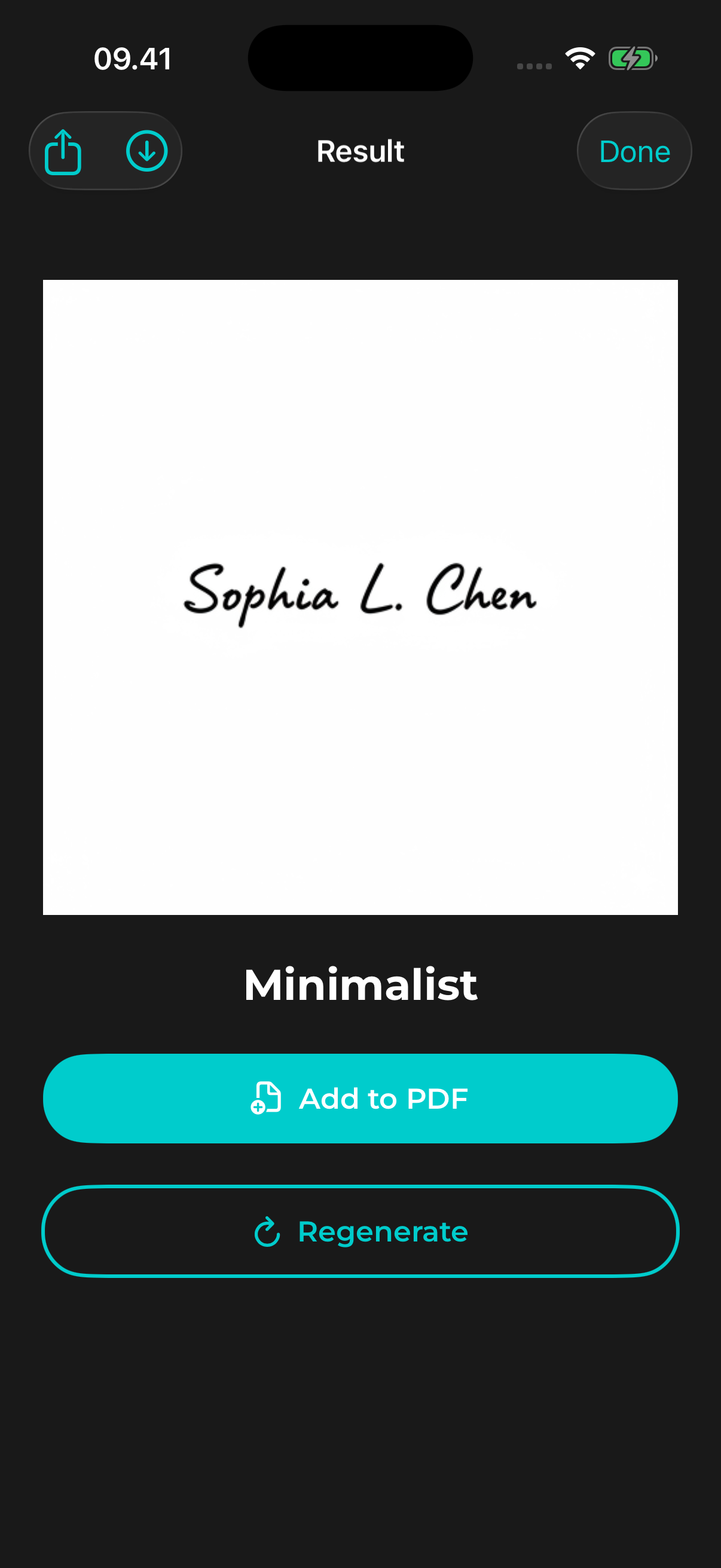
Practical example
For example, reduce the preview to roughly the size of a signature line. If the first and last names merge into a single shape, compare a simpler style.
Begin with a recognizable name
Enter the name or initials you actually intend to use. A signature can be expressive and still retain recognizable letters; the right choice depends on how it will be used.
Compare styles at the intended size
Try a clean style and a more decorative style, then view each at approximately the size it will appear on the document. Thin strokes, tightly spaced letters, and long flourishes can become difficult to read when reduced.
Inspect the generated result
Look at the first and last letters, initials, accents, and spaces. AutoSign generates a design from your input and may change shapes or strokes, so a visually attractive result is not necessarily an accurate rendering of the name.
Save only after checking
Keep the preferred design in My Projects. Saving or sharing its image and placing it on a PDF require AutoSign Pro. Confirm the exported copy and follow the recipient’s requirements for the document.
Explore the name-to-signature guide, image export guide, or PDF signing guide for detailed steps.
View AutoSign on the App Store ↗