
AutoSign journal · iPhone
How to create a signature with initials
Use initials to create a compact signature, then check that it remains readable and appropriate for your document.
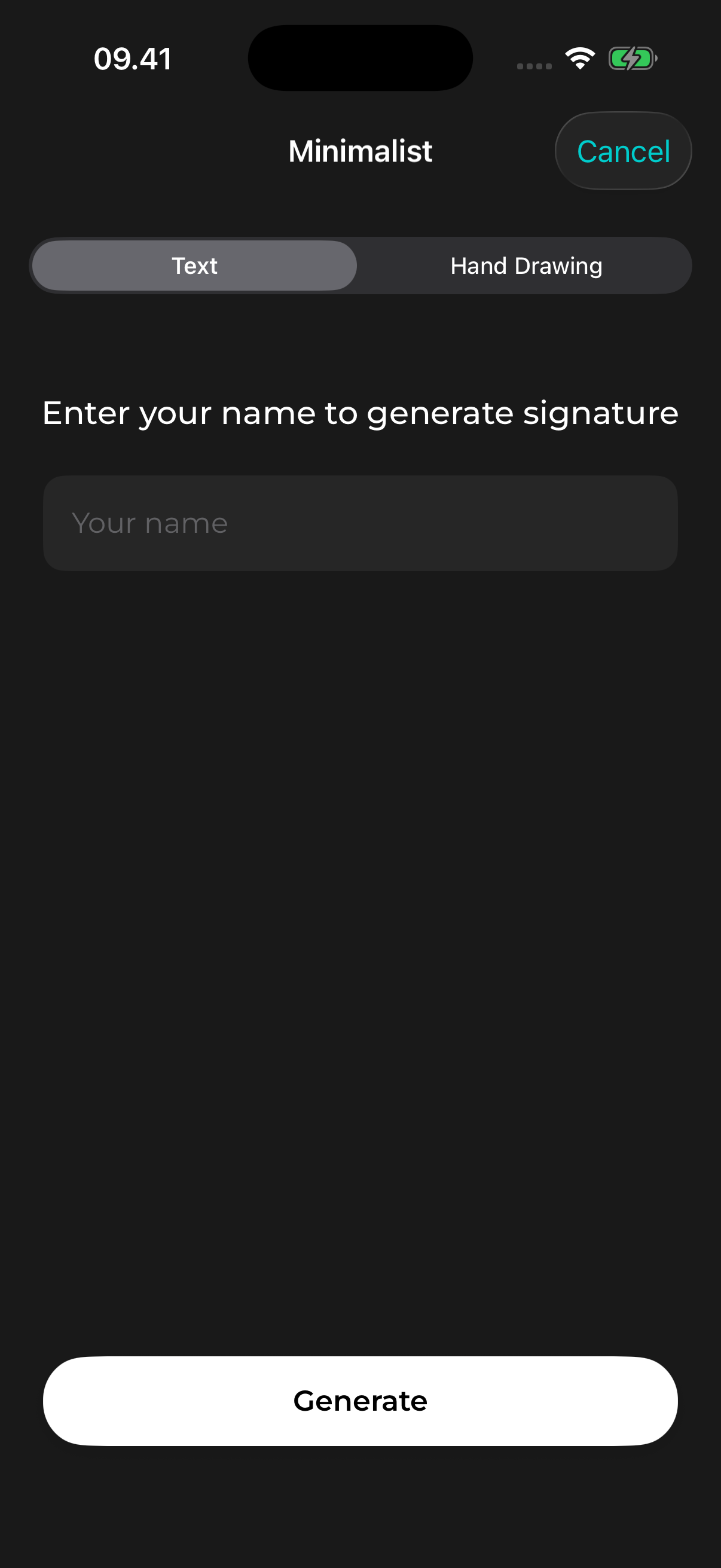
Practical example
For example, try the same initials with and without spaces and inspect the generated lettering. Choose the version that preserves the letters you intended.
Start with the letters you need
Write down the initials you want to use, including a middle initial if it matters. For example, Anna Nowak could try A. N. as an input. This is an example input, not a generated result.
Compare a few approaches
Try the initials with and without periods, or combine a first initial with a surname. Choose a simple style when the signature needs to remain legible at a small size. A decorative style can be useful when the recipient does not require a full name.
Create and inspect a design
In AutoSign, choose a style, enter your initials, and generate a result. Look closely at each letter and its spacing: generation can change strokes or produce lettering you did not intend. Keep a design only when the intended letters are recognizable.
Check the document requirements
An initial-based mark may not be accepted where a full signature is required. Ask the recipient what they accept. AutoSign places a visual mark and does not verify identity or provide a signing certificate.
Explore the name-to-signature guide, image export guide, or PDF signing guide for detailed steps.
View AutoSign on the App Store ↗