AutoSign guide · iPhone and iPad
How to draw a signature on iPhone
Draw a signature with your finger in AutoSign, refine it in a chosen style, and check the lettering before saving or signing a PDF.
How do I draw a signature on iPhone?
In AutoSign, choose a style, select Hand Drawing and write on the canvas with your finger. Tap Generate and compare the result with your original strokes. Tap Done to keep it in My Projects. Generation needs internet access, and the generated result can change your handwriting.
Use your handwriting as the starting point
AutoSign has a Hand Drawing mode alongside its typed-name signature generator. Draw on the iPhone screen and generate a refined result in your selected style. The result can change your strokes, so compare the lettering before using it.
Generation needs an internet connection and is subject to your available allowance. Saving or sharing a signature image and signing a PDF require AutoSign Pro.
Get AutoSign ↗Step 1
Choose a style and switch to Hand Drawing
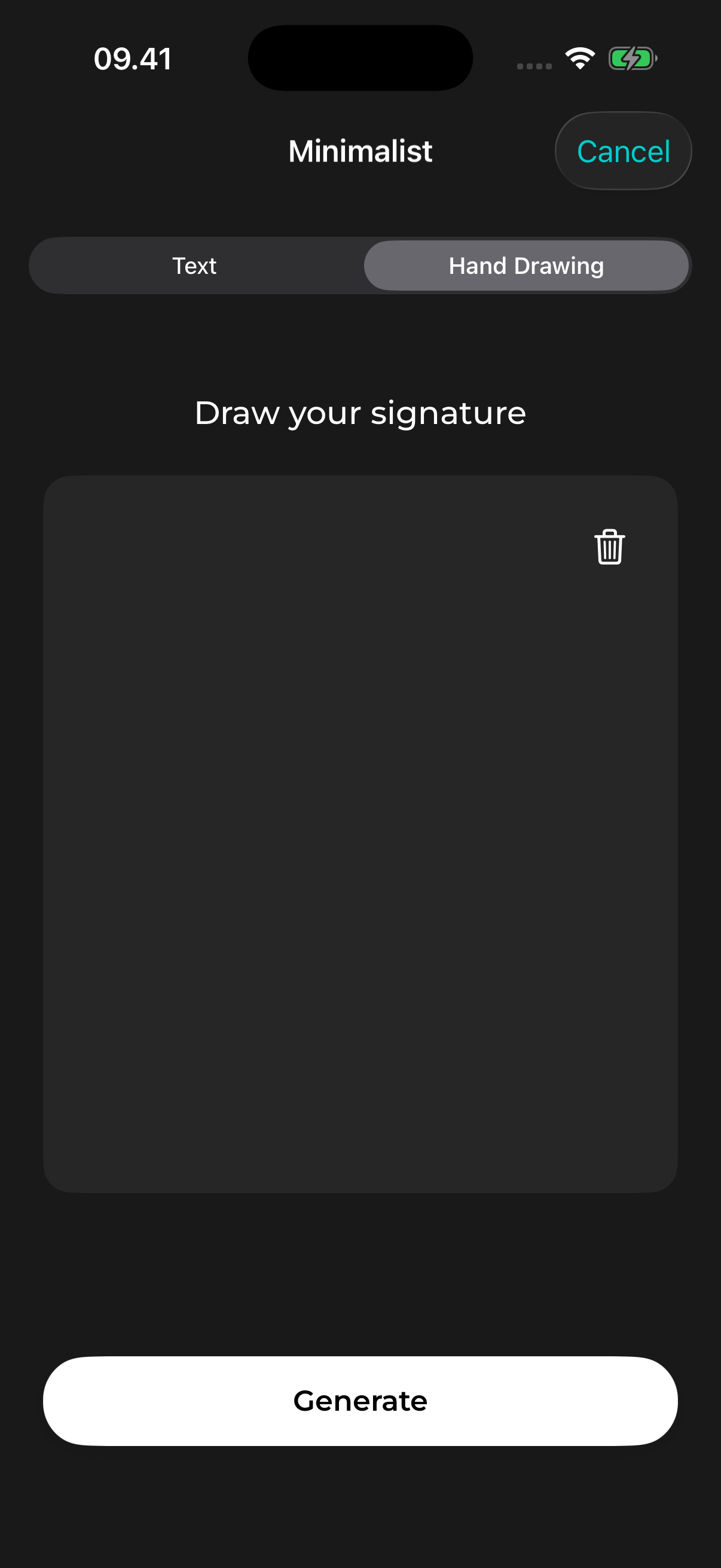
Open AutoSign and select a style. In the creation sheet, switch from Text to Hand Drawing. A drawing canvas appears below the tabs.
Choose a restrained style if you want to start with fewer flourishes. The selected style is applied during generation; the canvas is where you supply the handwriting itself.
2. Draw your signature with your finger
Write on the canvas with your finger. You can lift your finger between letters or separate strokes. Leave some room around the edges so a long underline or the final letter does not run out of space.
Try the name or initials you normally use. If the drawing is cramped or a stroke is wrong, tap the trash icon to clear the canvas and start again. Clearing removes the whole drawing.
A simple shape that you can repeat is easier to recognize across documents. For forms, follow the recipient’s instructions about names and initials.
3. Generate and check the result
Tap Generate after drawing. AutoSign processes your handwriting into a signature design in the selected style. This is a generated result, so it may differ from your original strokes.
Compare the initials, surname, spacing and distinctive letters with what you drew. If letters disappear or change, try again or use a simpler style. Do not keep a design solely because it looks decorative.
If you prefer to start with typed text, use the separate name-to-signature generator workflow.
4. Keep the design or use it on a document
Tap Done to keep the signature in My Projects. Saving a project and saving an image to Photos are separate actions.
To export the result, follow the signature image guide. To use it on a document, tap Add to PDF and follow the PDF signing guide. Image export and PDF signing require Pro.
Drawing a signature versus generating one from a name
| Starting point | When to use it |
|---|---|
| Hand Drawing | You want to supply your own letter shapes and handwriting. |
| Text | You want to explore new designs from a typed name or initials. |
Why is the generated signature different from my drawing?
Generation refines and interprets the input. It is not an exact tracing tool. Check the result before sharing it and choose another attempt if the name is no longer recognizable.
Why is Generate unavailable?
Add a stroke to the canvas first. If generation starts but does not complete, check your internet connection and the generation allowance shown in the app.
Does drawing prove who signed?
A drawn or generated image is a visual signature. AutoSign does not verify identity or create a certificate or audit trail. Check whether the recipient accepts that kind of signature.
View AutoSign on the App Store ↗These instructions cover AutoSign’s app controls. For app identity, access details and support, see AutoSign app facts. Current availability and plans are in the official App Store listing.